ChoreHero uses a parent-managed account model. Parents own the household setup and child access rules.
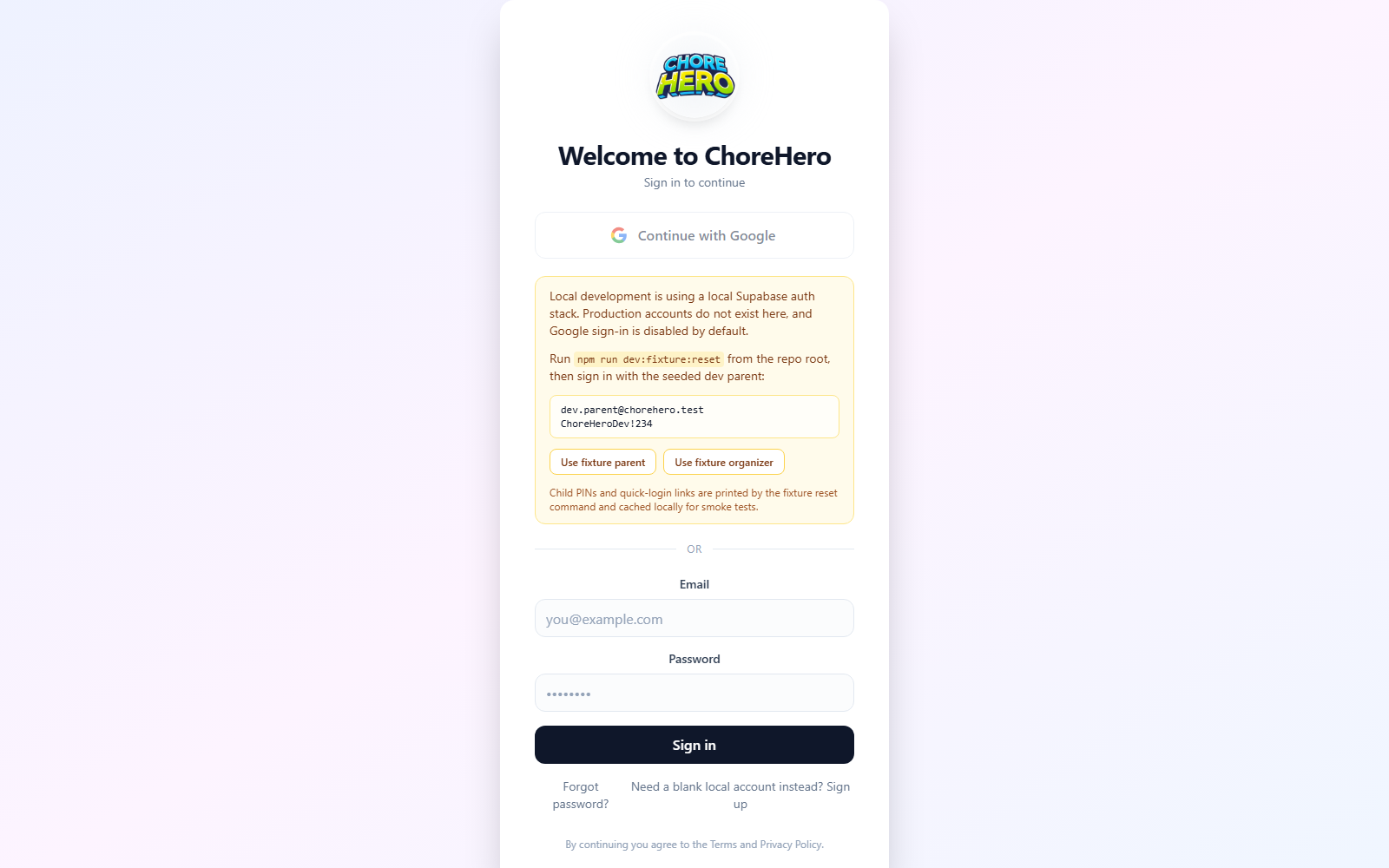
Parent sign-in
Parents should always start from app.chorehero.cloud/login.
After sign-in, confirm that:
- you land in the correct household
- the parent dashboard loads without errors
- your account settings are visible under Settings > Account
Child access paths
Child access can include:
- direct child login screens
- parent-managed quick-login links
- trusted-device or approval-based flows
The exact combination depends on the household configuration and active plan features.
Quick Hero Login links
Quick Hero Login links are the fastest child access path when they are available on your plan.


What the child does:
- Open the hero’s Quick Hero Login link.
- If the device is already trusted, enter the hero PIN.
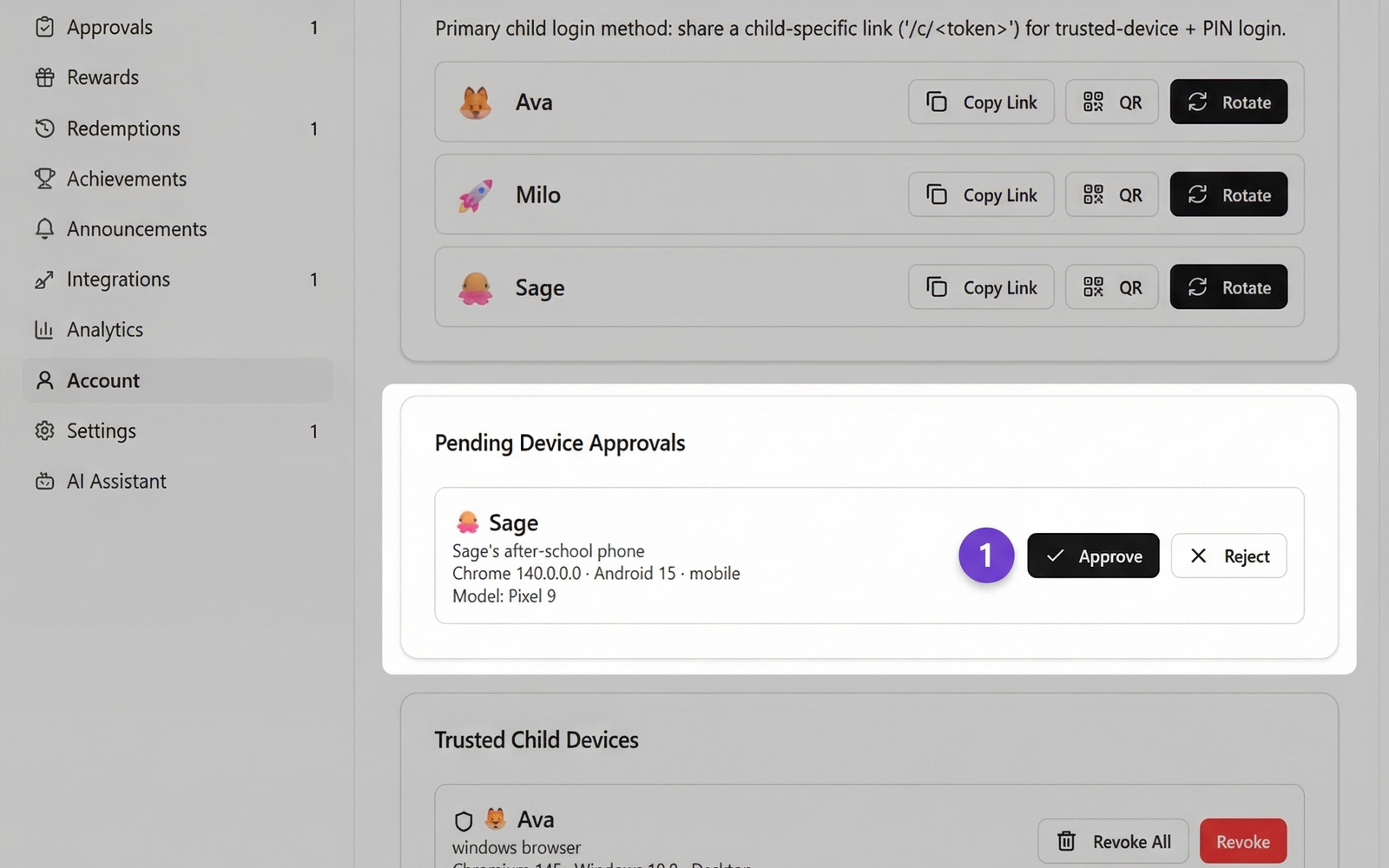
- If the device is new, ask a parent to approve it.
- Finish login with the hero PIN.
What the parent does:
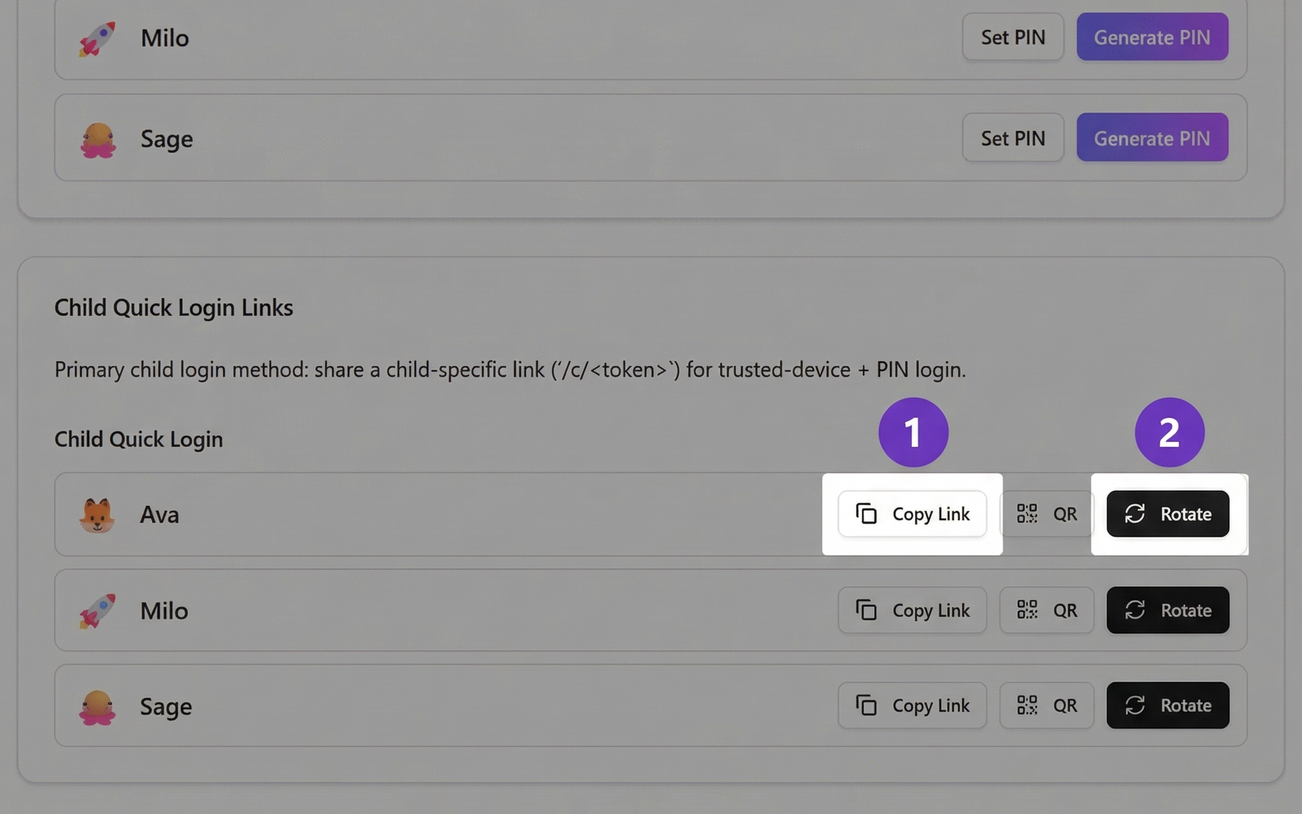
- copy the link for the correct hero
- place it on the device the child actually uses
- approve new devices with the parent PIN when required
- rotate the link if it was shared too widely or saved on the wrong device
This path works best for routine access on a home tablet, shared family device, or another device the same child uses often.
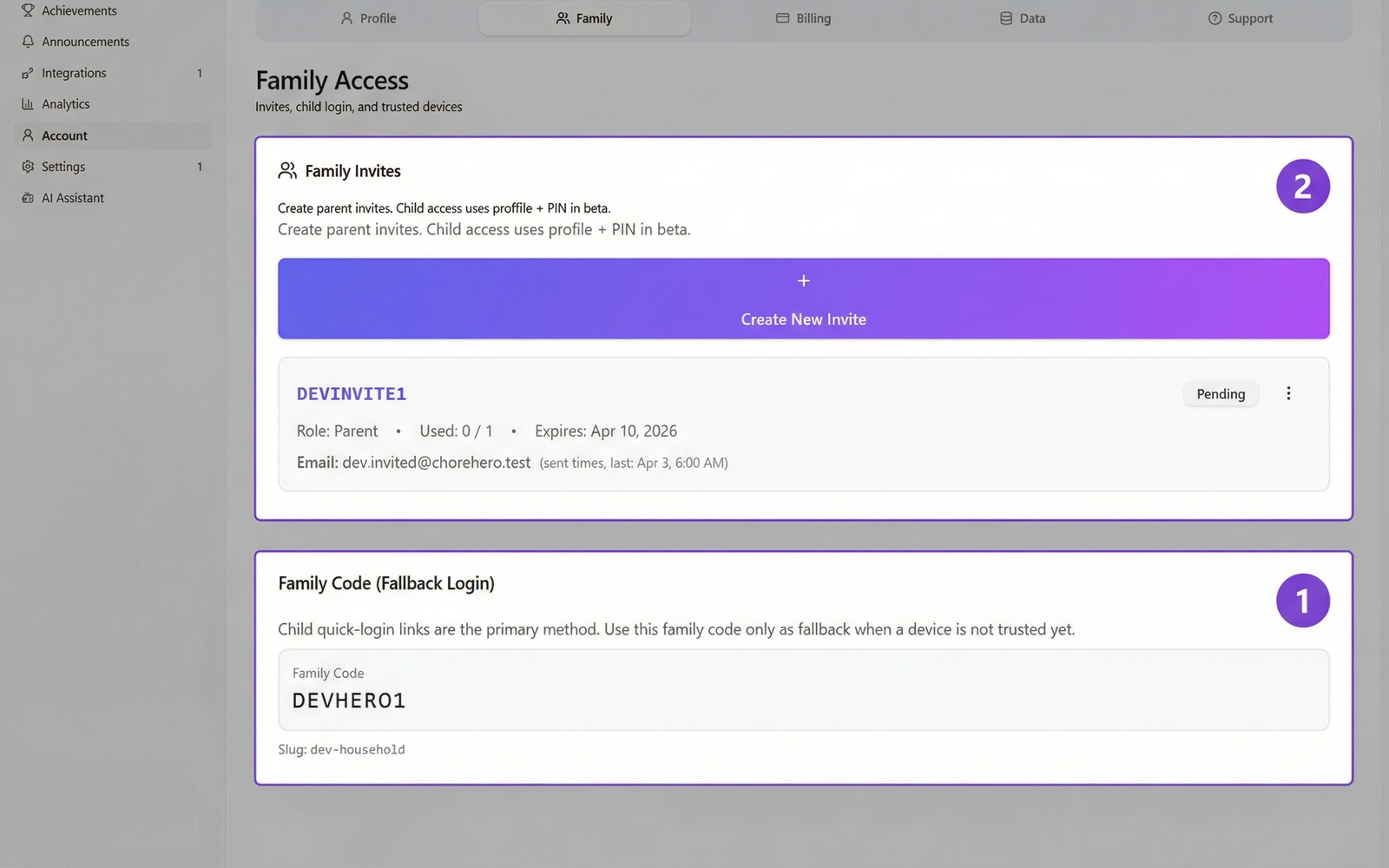
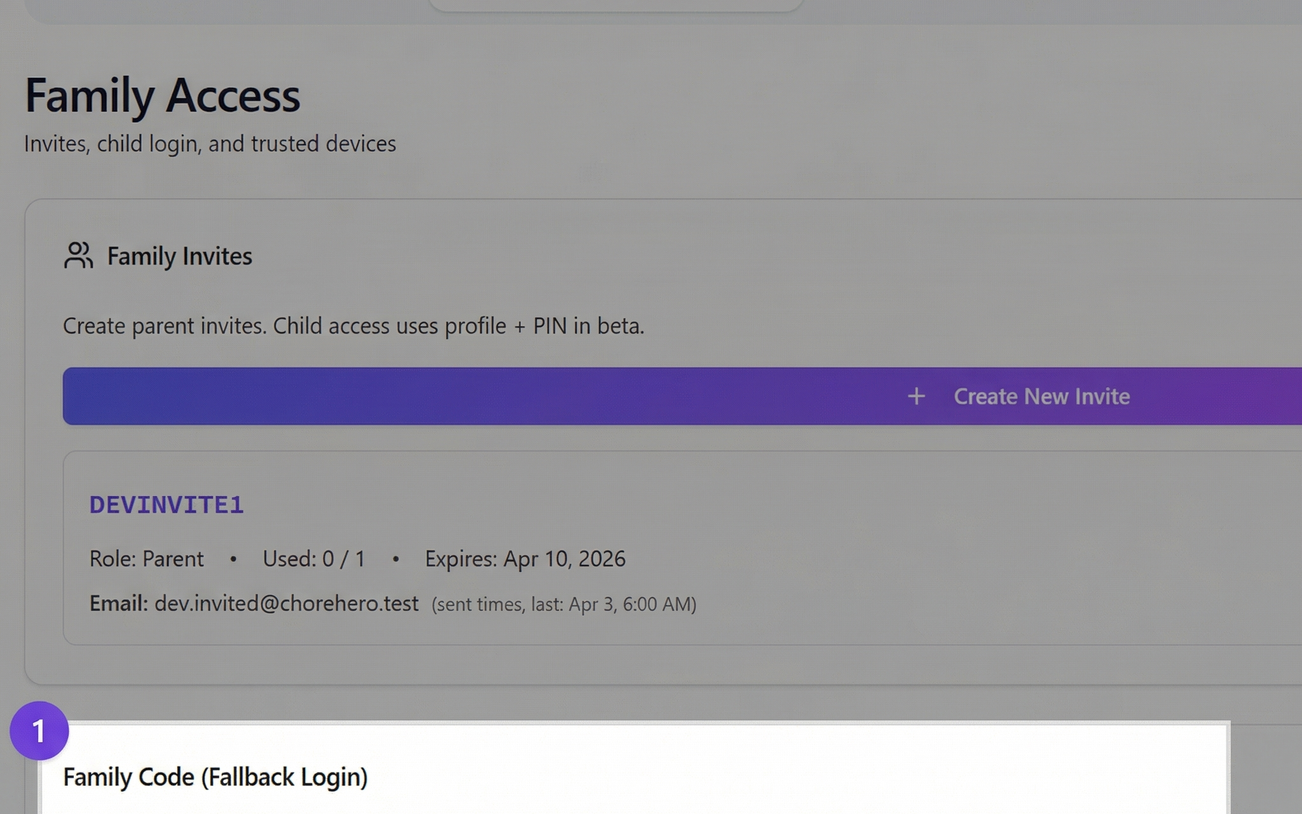
Family code fallback login
Family code login is the standard backup path when a quick login link is not being used.
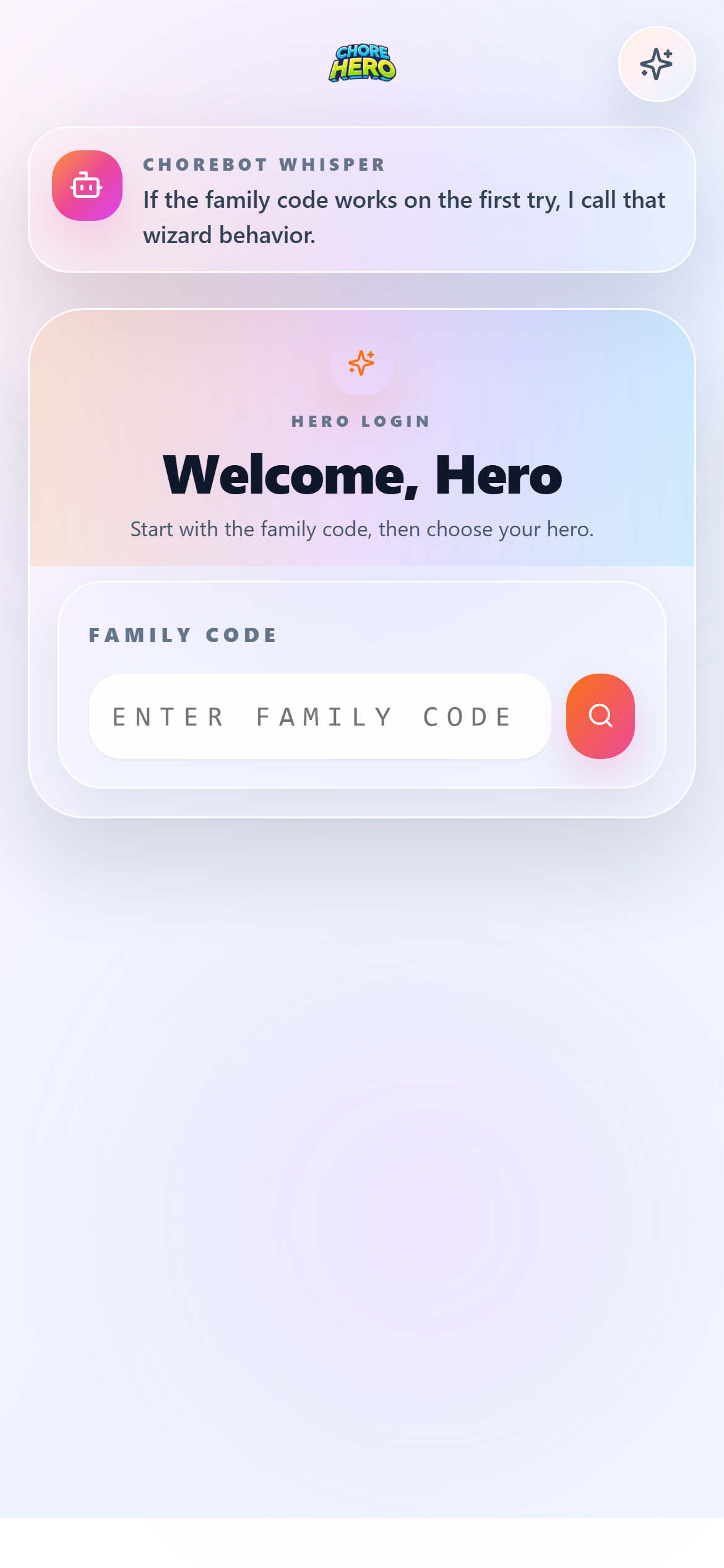

What the child does:
- Open the normal child login screen.
- Enter the family code.
- Choose the correct hero.
- Enter the hero’s 4-digit PIN.
What the parent does:
- keep the family code available for recovery and first-time setup
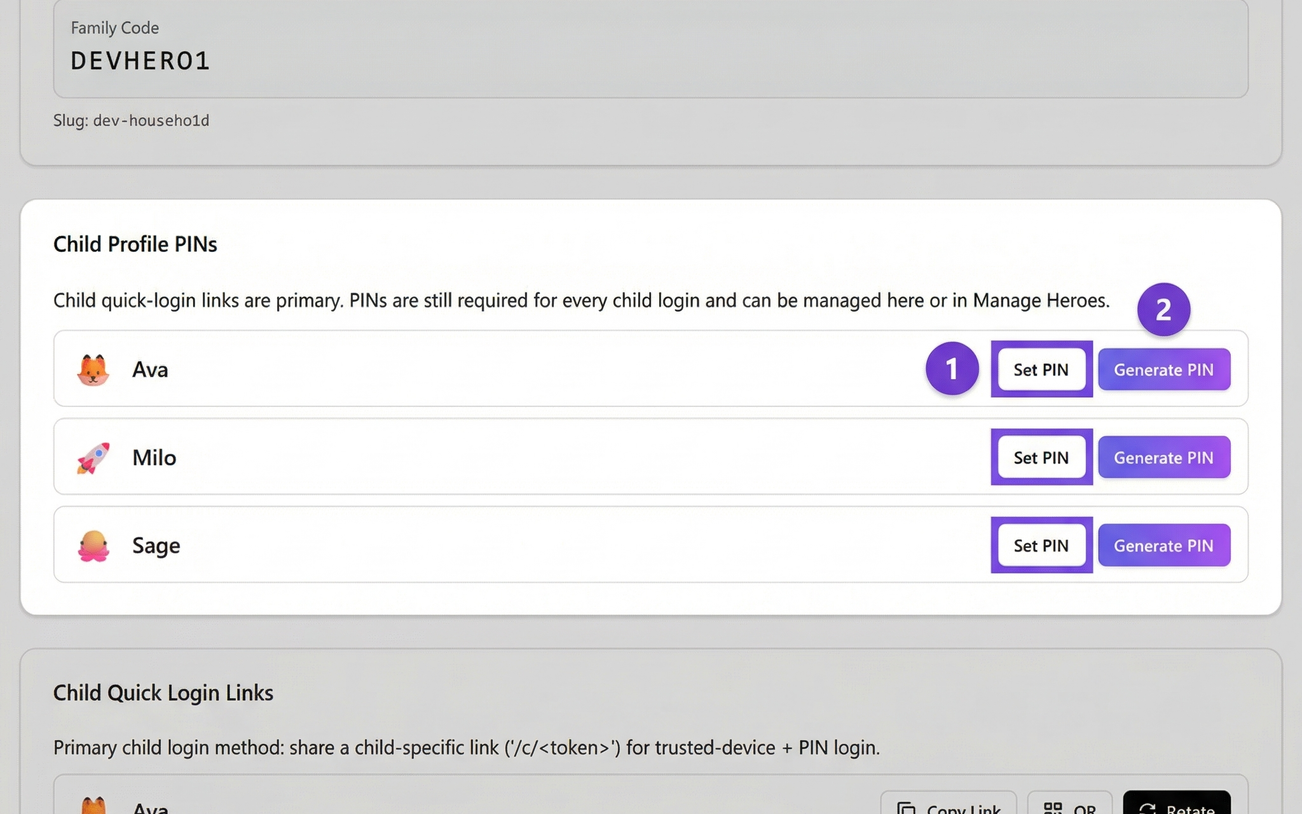
- make sure each hero has a current PIN
- use this path when a quick login link was rotated, lost, or not working
This path is useful for first-time device setup, troubleshooting, and backup access.
Linked and standalone hero access
Parents can also decide whether a hero stays standalone or is linked to a child user account.
- linked heroes are better for children who sign in more independently
- standalone heroes are often simpler for younger children or shared-device routines
For the full hero-by-hero setup flow, see Managing heroes.
Onboarding flow basics
During initial setup, parents usually:
- create or confirm the household
- add children
- create the first chores and rewards
- confirm how children will sign in
- review settings and account controls
For many families, the cleanest setup is:
- create each hero first
- set or generate a 4-digit hero PIN right away
- test one child login path before handing the device to the child
- keep family code login available as a fallback even when quick login becomes the daily path
That avoids a common failure mode where the child only has one saved shortcut and no backup way in.
If a child cannot get in
Check these first:
- is the child using the right household path?
- did the child choose the correct hero?
- is the child entering the current 4-digit hero PIN?
- was the quick-login link rotated or replaced?
- was a device approval revoked?
- did a recent plan change affect quick-login or device-approval access?
If the answers are unclear, continue with Troubleshooting.
If the issue is specific to one hero, also review Managing heroes for PIN resets, link rotation, and parent approval flows.
If the wrong parent account signs in
Make sure you:
- signed in with the expected parent identity
- did not accidentally switch households
- are not using an expired or stale browser session
Logging out and starting again from the main login page is usually the cleanest reset.
Account settings
The parent Settings > Account area is the main location for:
- account-level review
- billing and subscription actions
- household-facing account maintenance
If you are writing support content for a new settings flow, update this article and the billing guide together when the change is user-facing.